Excited to begin something
amazing? Get in touch—we'd love to connect with you!
Make a Payment
Payment Instructions - Razorpay(INR)
Please make the payment only to the above Razorpay.
Do not include any memos, messages, or notes while sending the payment.
After completing the payment, kindly upload your Payment Proof (screenshot or
image)
using the form provided.
Ensure that your Name, Email, and Phone Number match the details you provide in the
form.
Payments without proof submission may not be verified.
Once your payment is verified, you will receive a confirmation message from our
team.
Payment Instructions For Zelle
Please make the payment only to the above Zelle email.
Do not include any memos, messages, or notes while sending the payment.
After completing the payment, kindly upload your Payment Proof (screenshot or
image)
using the form provided.
Ensure that your Name, Email, and Phone Number match the details you provide in the
form.
Payments without proof submission may not be verified.
Once your payment is verified, you will receive a confirmation message from our
team.
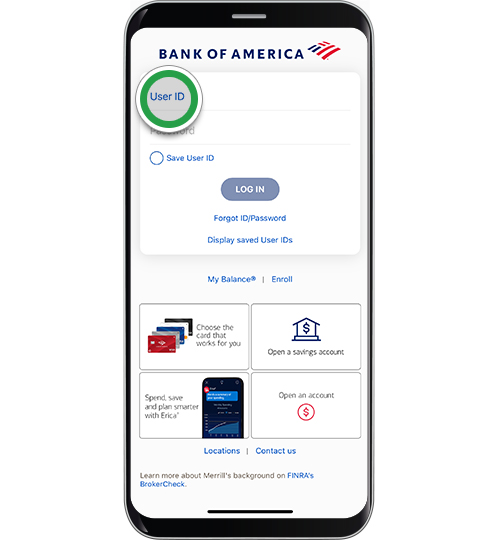
Step 1:
Log in to our Mobile Banking app.
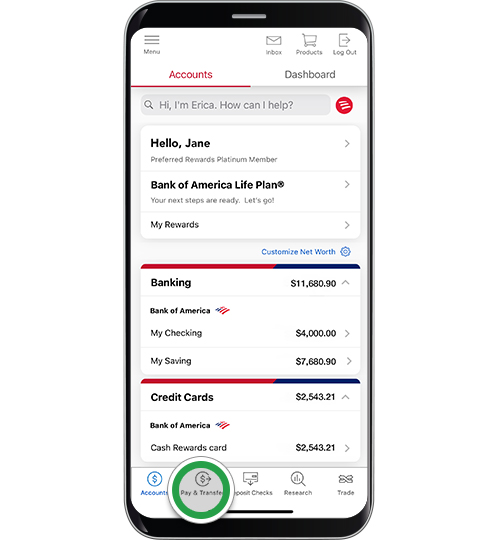
Step 2:
Tap Pay & Transfer to get started.
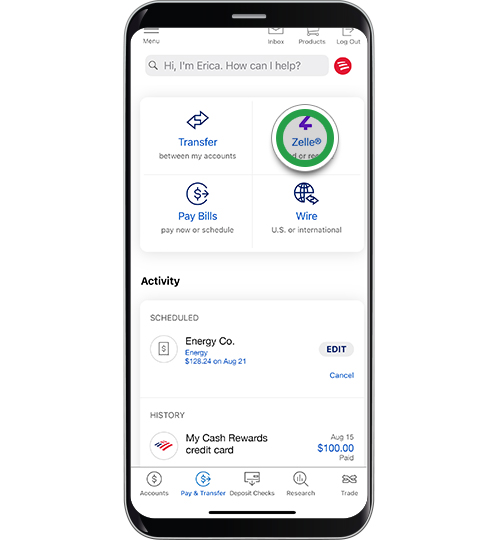
Step 3:
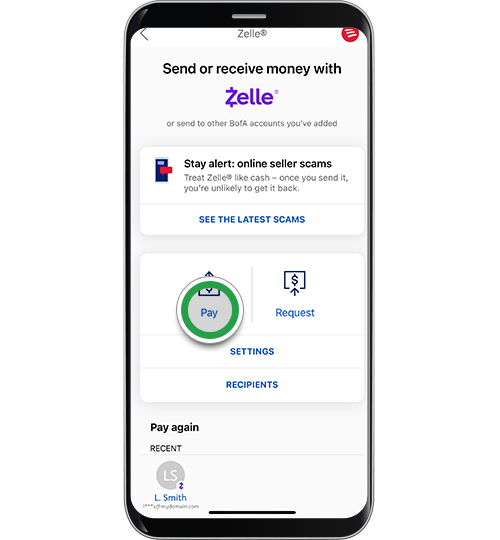
Tap Zelle®.
Step 4:
Tap Pay to send money. You can also request money to get paid back easily or divide
expenses.
Note: If you're not already enrolled in Zelle®, you'll see a screen for setup. Tap
Set up Zelle® and follow the prompts to get set up.
Step 5:
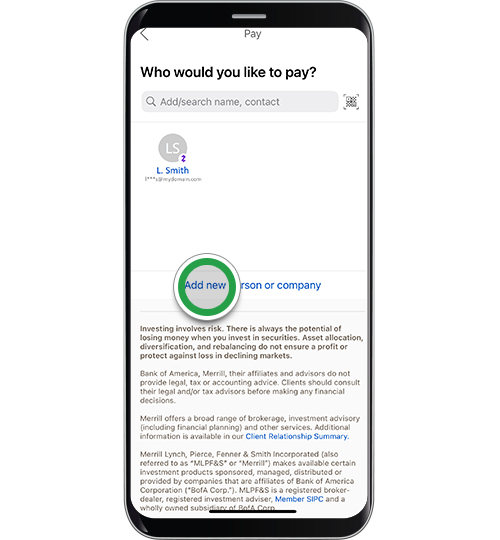
If you are sending to a new contact, tap Add new person or company.
Note: For an existing contact, use the search bar to select a trusted recipient from
your list. Look for the purple ‘Z’ to know who is already registered to use Zelle®.
You can also use a unique QR code to pay people back. Tap the QR code icon next to
the search bar to open your mobile device camera, scan their code, confirm and send.
Proceed to step 11.
Step 6:
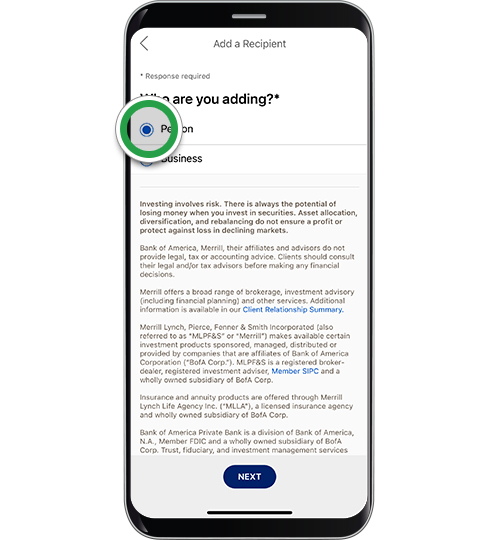
Select who you’re adding. Tap Next.
Step 7:
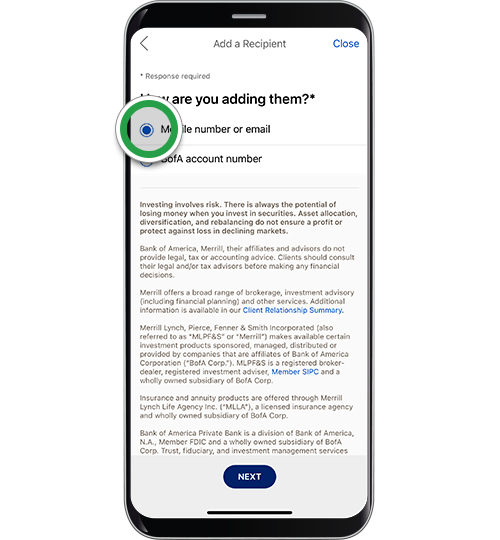
Select how you’ll add their information. Tap Next.
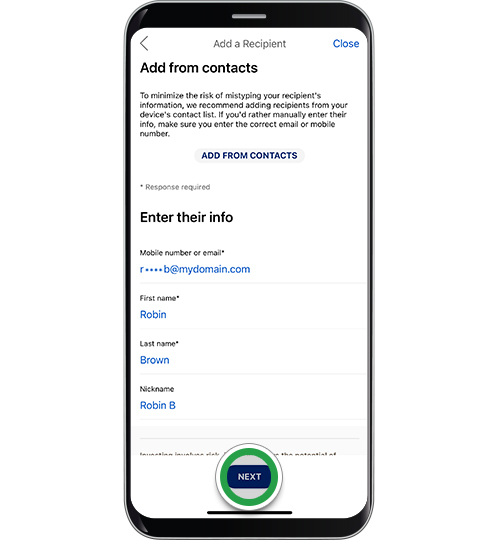
Step 8:
Enter the details for your new contact. You can also tap Add from Contacts to select
from the existing contacts in your phone.
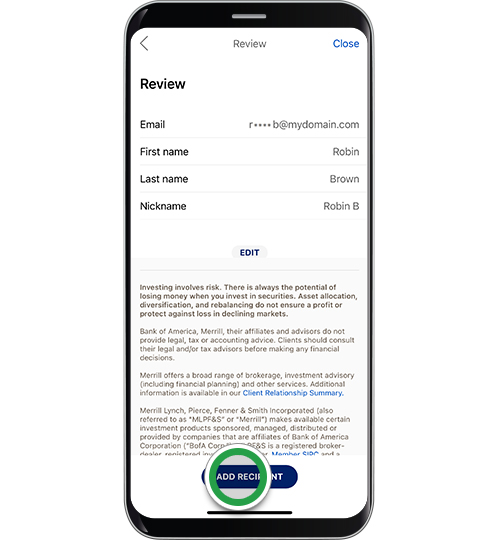
Step 9:
Review the details for your contact to ensure accuracy. Tap Edit to modify or Add
Recipient.
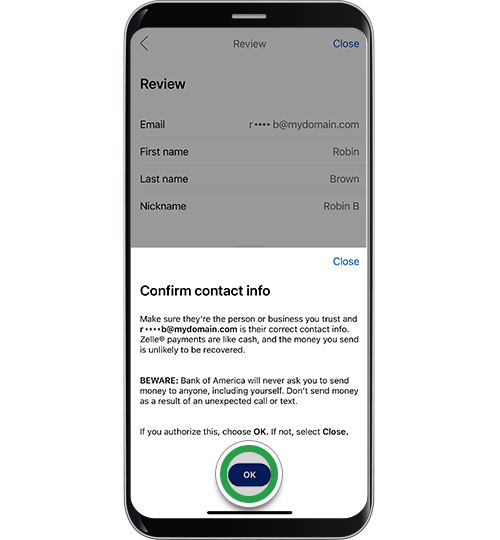
Step 10:
Read the information regarding Zelle payments and tap OK to authorize the new
contact.
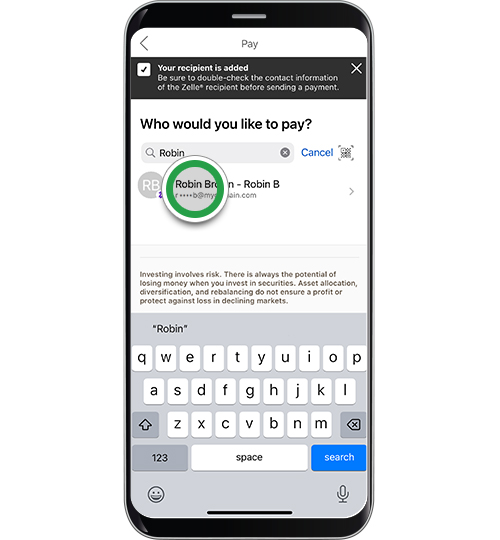
Step 11:
Your recipient is added. To pay this or another contact, type the name in the search
bar. Then tap on the contact you want to pay.
Step 12:
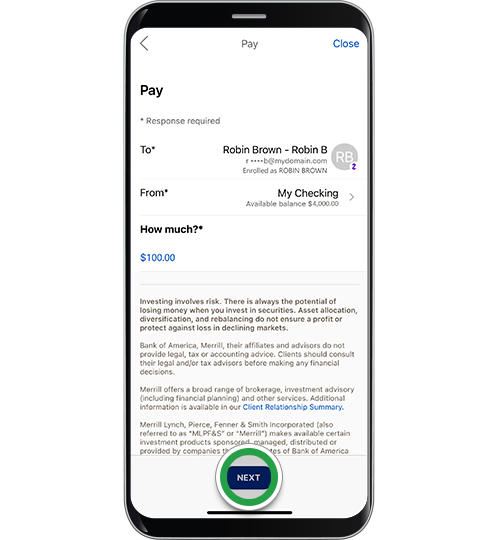
Choose the account you want to send money from and enter the amount. Tap Next.
Step 13:
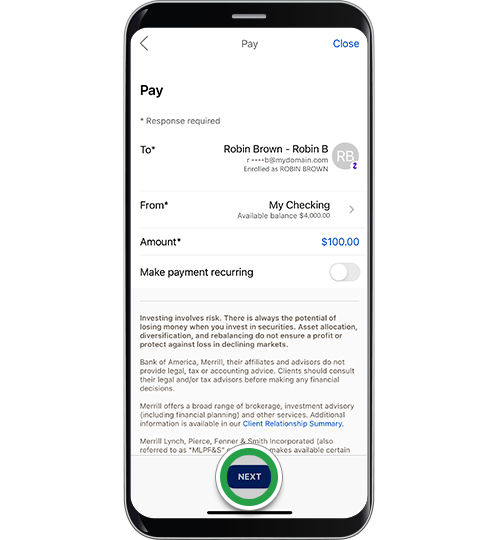
If you want to make the payment recurring, tap the toggle. For this demo, we’ll
schedule a one-time payment. Tap Next.
Note: Scheduled and recurring payments can’t be made for unregistered Zelle®
recipients (look for the purple ‘Z’ to know who is already registered to use
Zelle®).
Step 14:
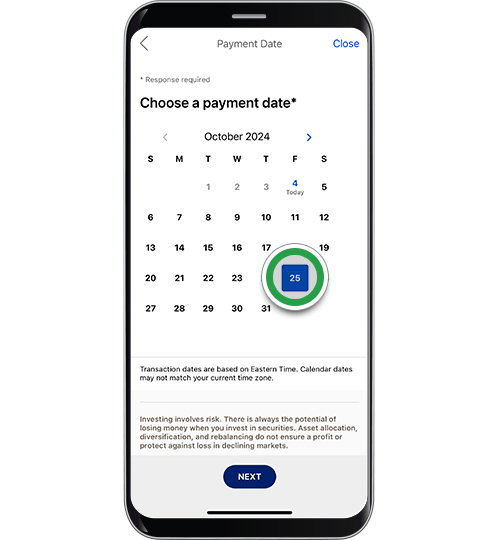
Choose a payment date to schedule your one-time payment. Select today’s date if you
want to make an immediate payment. Tap Next.
Note: If you selected recurring payments, you’ll see screens to select How often,
How long, and Choose a start date.
Helpful tip! Transaction dates are based on Eastern time. Calendar dates may not
match your current time zone.
Step 15:
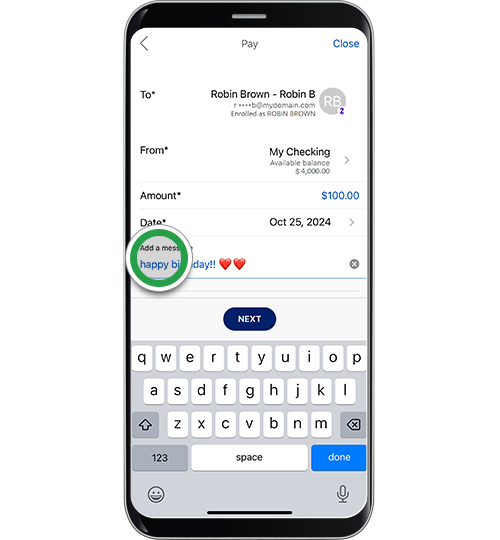
You can add an optional message for the recipient. Tap Next.
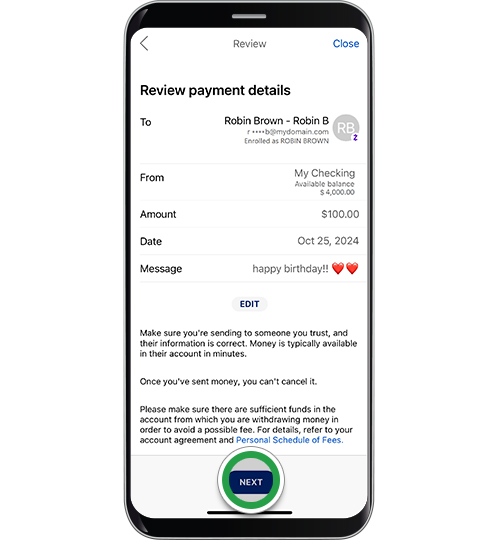
Step 16:
Review the details for the payment to ensure accuracy. Tap Edit if needed. Tap Next
to proceed.
Note: If you’re making an immediate payment, you’ll tap Pay.
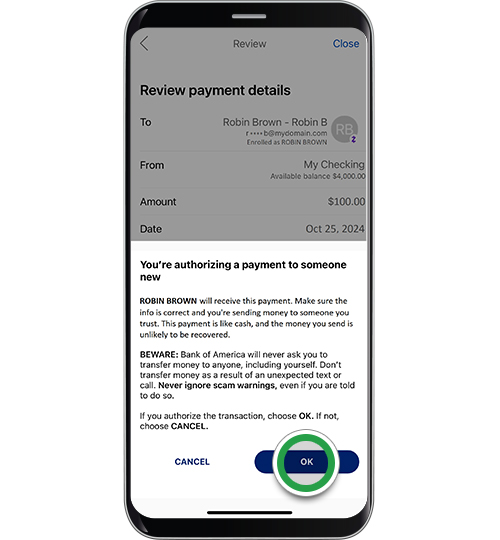
Step 17:
For payments to new contacts, you’ll see an authorization screen. Read the
information and click OK to authorize the payment.
Note: You may need to request an authorization code to verify your identity before
you can send your payment.
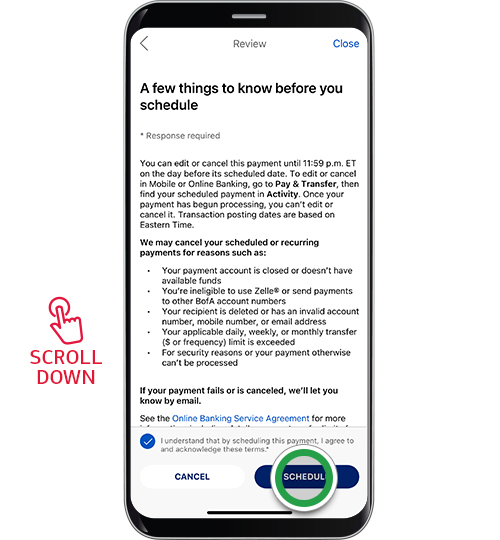
Step 18:
Be sure to scroll down the screen to read important information about your scheduled
payment. Tap the circle to agree to and acknowledge the terms. Tap Schedule.
Note: If you’re sending a one-time immediate payment, you’re not able to edit or
cancel the payment. Instead, you’ll see a confirmation screen that your payment has
been sent.
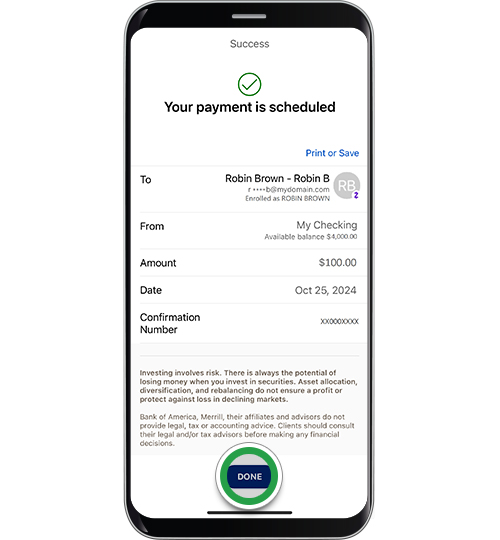
Step 19:
Your payment is scheduled. Tap Done to see the details on the Activity screen.
For scheduled and recurring payments, you can view, edit and cancel on the Activity
screen.
Note: If the recipient is already enrolled, they’ll be notified once the payment is
sent and typically receive their money within minutes. If they aren't yet enrolled
with Zelle®, they’ll receive a text or email on how to get started.
Payment Instructions - PayPal
Please make the payment only to the above Paypal email.
Do not include any memos, messages, or notes while sending the payment.
After completing the payment, kindly upload your Payment Proof (screenshot or
image)
using the form provided.
Ensure that your Name, Email, and Phone Number match the details you provide in the
form.
Payments without proof submission may not be verified.
Once your payment is verified, you will receive a confirmation message from our
team.
How do I send money?
With PayPal, you can send money to an email address, phone number, username, name,
or
via PayPal.Me.
Steps (on the PayPal website)
Go to Send and Request.
Enter the recipient’s name, PayPal username,
email address, or mobile number and click
Next.
Enter the amount, choose the currency, add an
(optional) note, and click Continue.
If available, choose your payment type: For Goods and Services
or
For Friends and Family.
Choose your payment method and click Next.
Review the information and click Send Payment Now.
Payment Instructions - International Bank Transfer
Please make the payment only to the Mentions Account Number (National Bank Transfer).
Do not include any memos, messages, or notes while sending the payment.
After completing the payment, kindly upload your Payment Proof (screenshot or
image)
using the form provided.
Ensure that your Name, Email, and Phone Number match the details you provide in the
form.
Payments without proof submission may not be verified.
Once your payment is verified, you will receive a confirmation message from our
team.
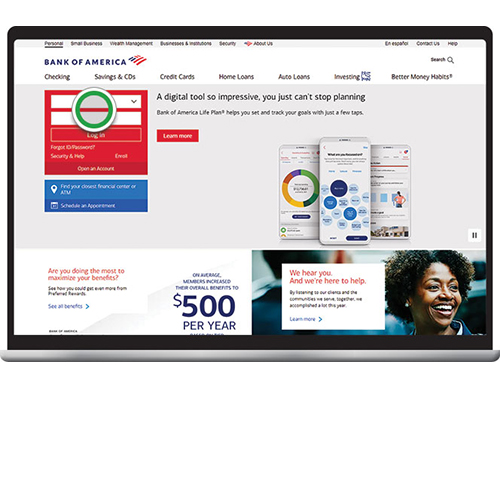
Step 1:
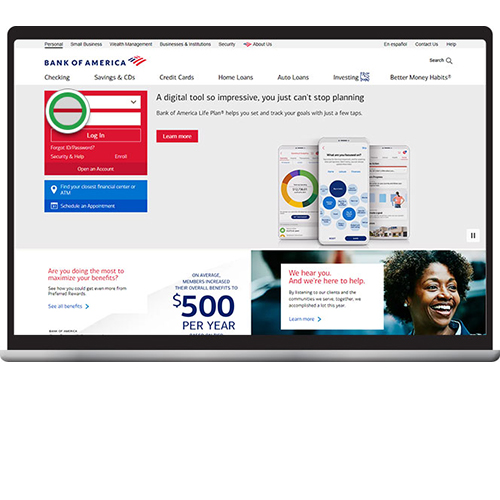
Log in to Online Banking.
Before you get started, first gather the recipient's information:
Recipient name and address
Recipient's bank information such as SWIFT code
Wire routing number
Bank account number
Account type
If you're not enrolled in Secured Transfer, you'll also need your debit card number
and PIN.
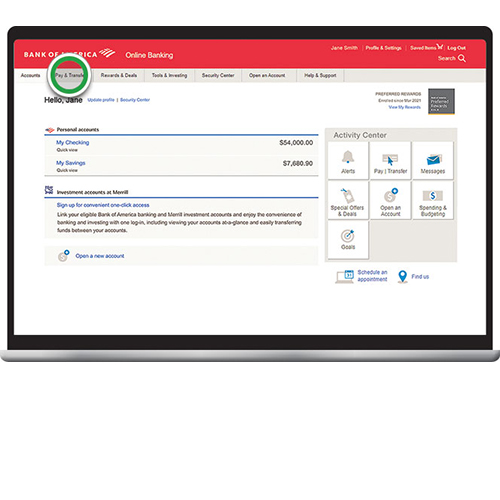
Step 2:
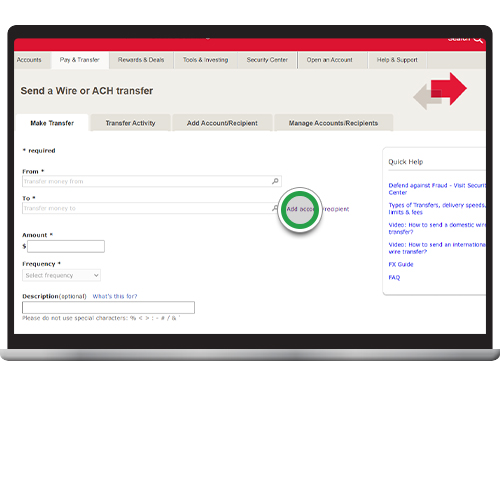
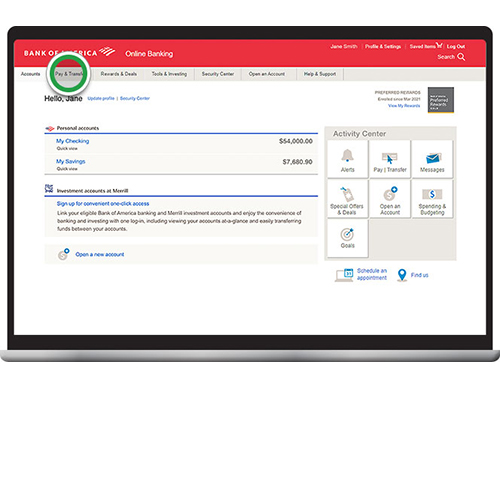
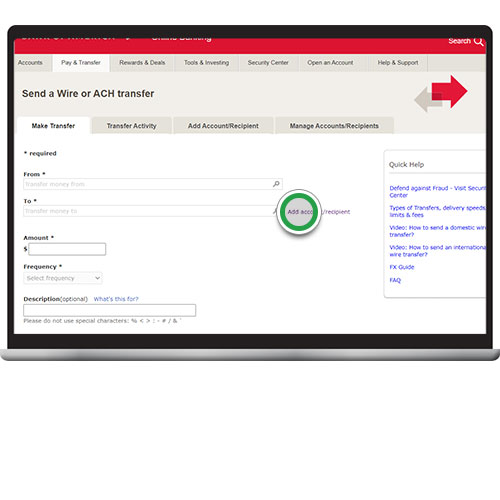
Select Pay & Transfer to get started.
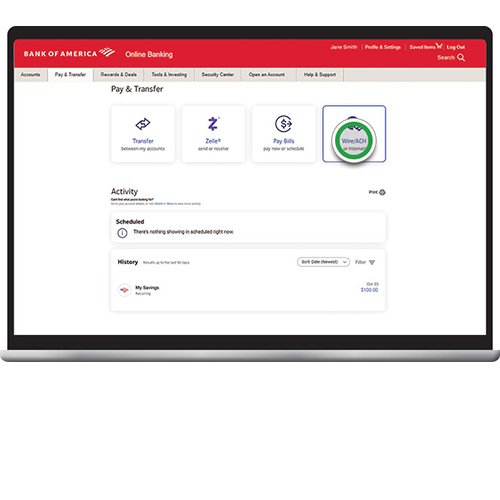
Step 3:
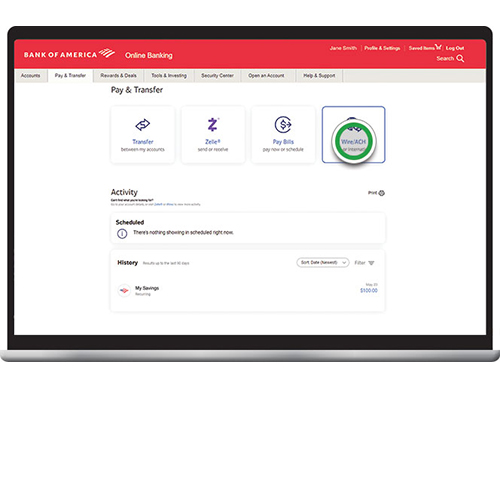
Select Wire/ACH.
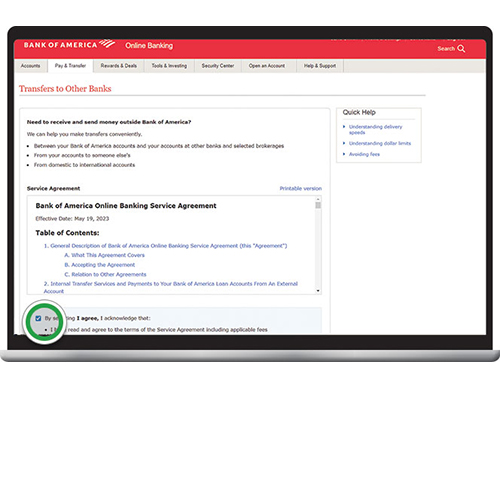
Step 4:
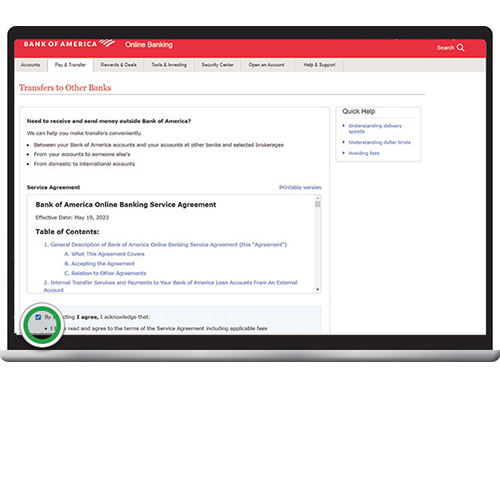
If this is your first time using this service, read and accept the Service Agreement to
enroll.
Step 5:
To send money to someone new, select Add Account/Recipient. If you're sending to an
existing recipient, proceed to step 15.
Helpful tip! To learn more about sending a wire transfer and what you'll need, visit our
Wire Transfers page.
Step 6:
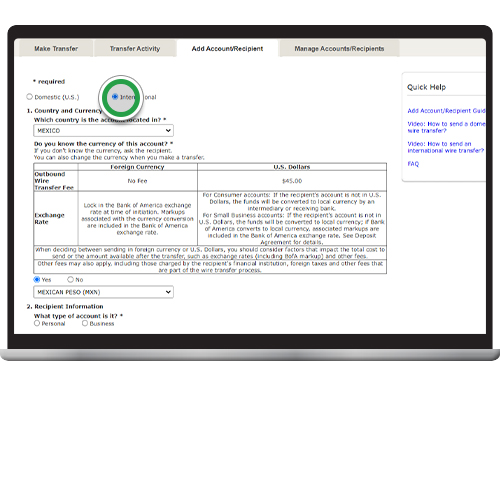
Select International, then choose the country of your recipient’s bank account and the
currency you will send. If you don’t know the currency, the transfer will be sent in
U.S. dollars. Reminder, this demonstration focuses on International Wire Transfers. For
Domestic Wire Transfers, navigate here.
Note: The required information may differ by country and/or bank. For this demo, we'll
choose Mexico.
Step 7:
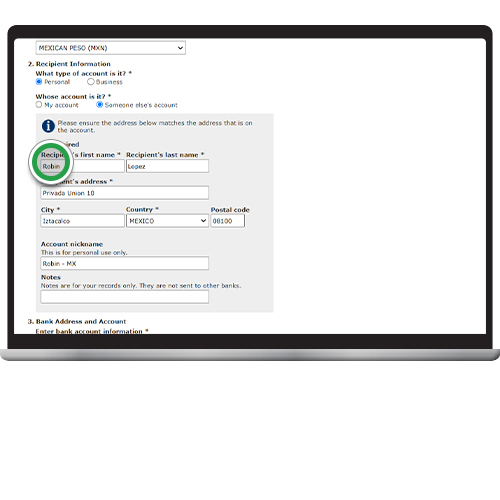
Add recipient’s information, including their address as on file with their bank.
To choose state, select from the drop-down.
Step 8:
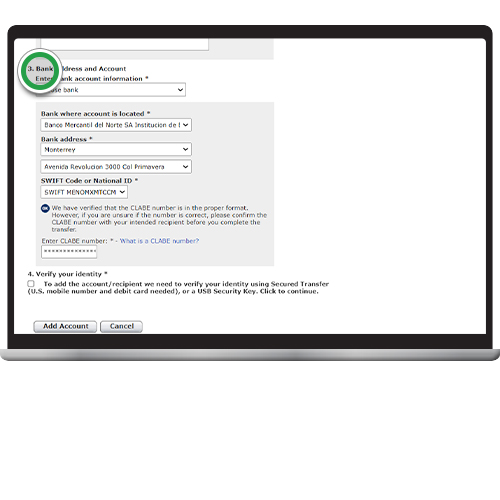
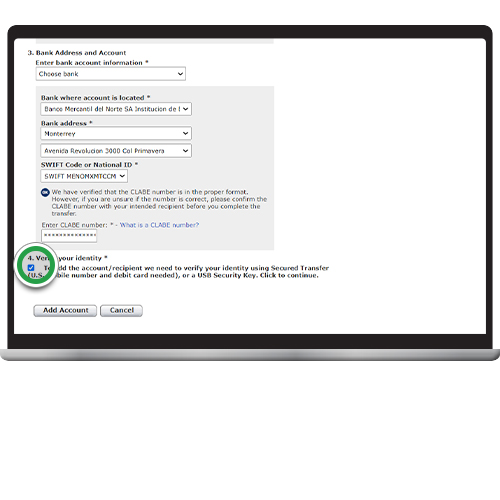
Now, enter recipient's bank address and account information. Select the bank name,
address, and the SWIFT code or requested bank identifier. Then enter the account number
or requested account identifier like IBAN or CLABE.
Helpful Tip! You can select different bank identifiers in this section based on your
recipient bank country.
Step 9:
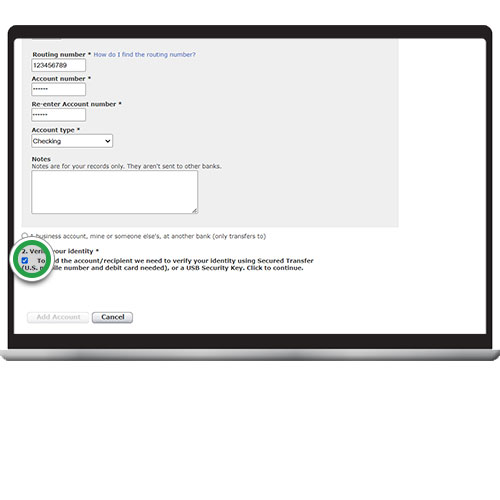
Check the box to Verify your identity before adding your recipient.
Step 10:
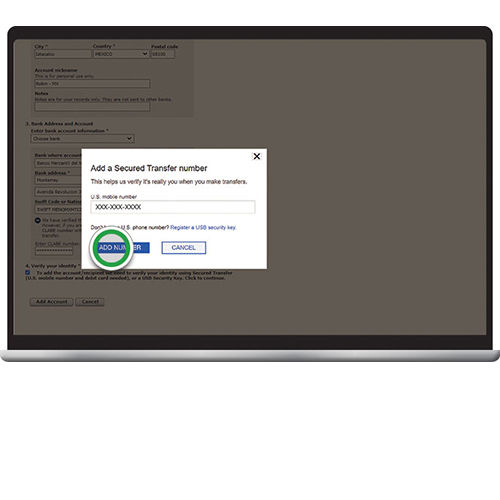
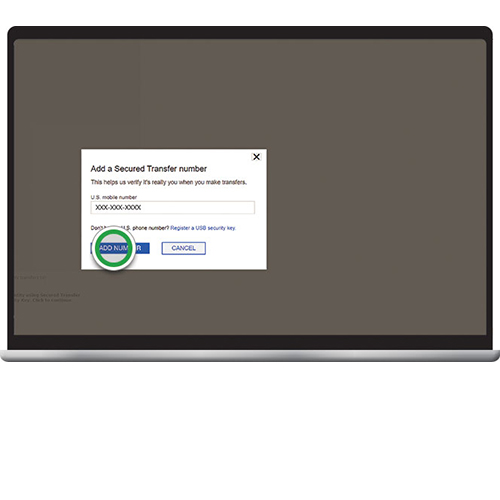
If you haven't already, you may be required to enroll in Secured Transfer to send your
wire. To get started, add your U.S. mobile number and click Add Number.
Note: If you're already enrolled in Secured Transfer, you'll be prompted to request and
enter an Authorization Code to add your recipient. Proceed to step 12.
Step 11:
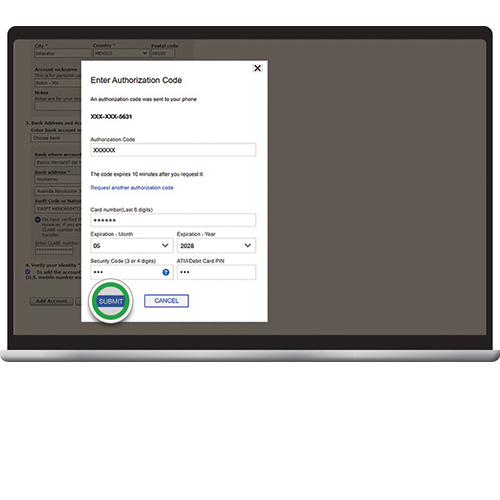
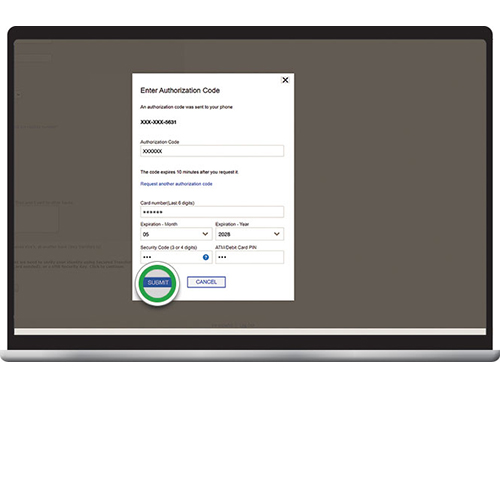
You'll receive a text message with an Authorization Code to complete enrollment. Enter
your Authorization Code, then add your ATM/Debit card details. Click Submit to complete
the enrollment.
Security Tip! Never share this code with anyone — we'll never call or text you asking
for a code.
Step 12:
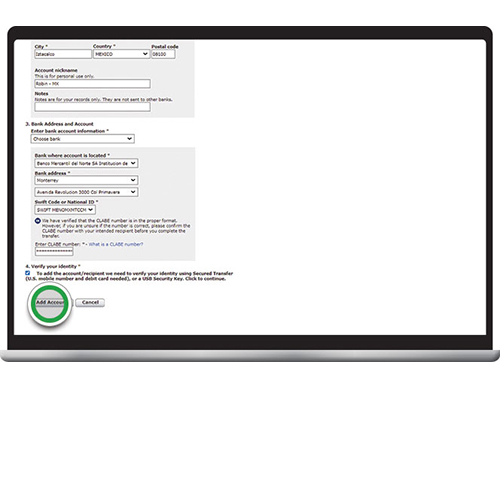
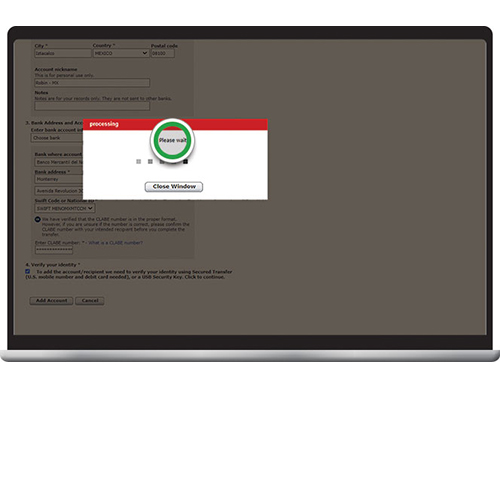
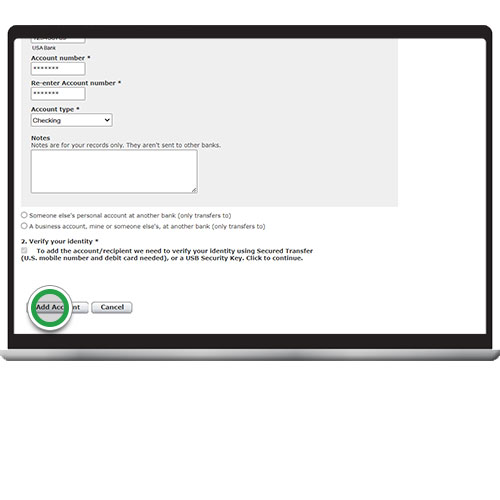
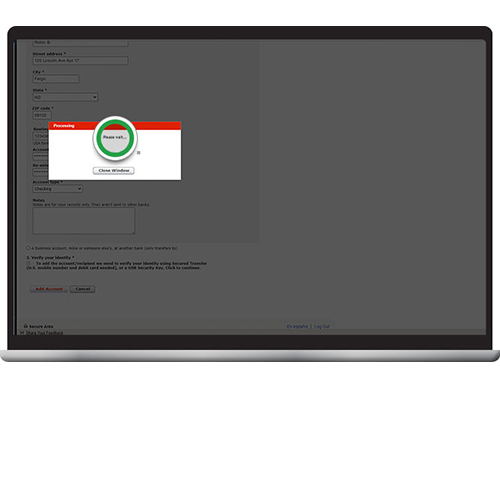
Select Add Account and wait for the information to be verified.
Step 13:
Please wait. If you close this window prematurely, your recipient may not be added.
Step 14:
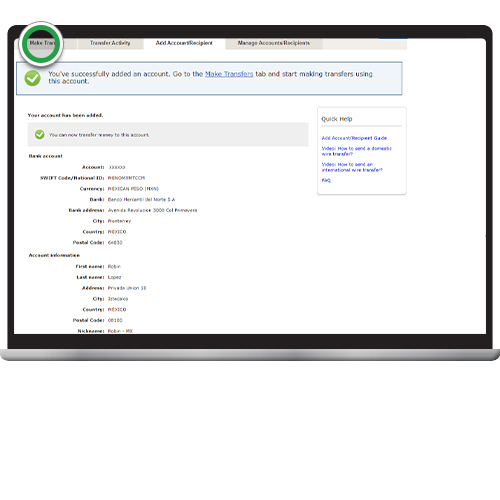
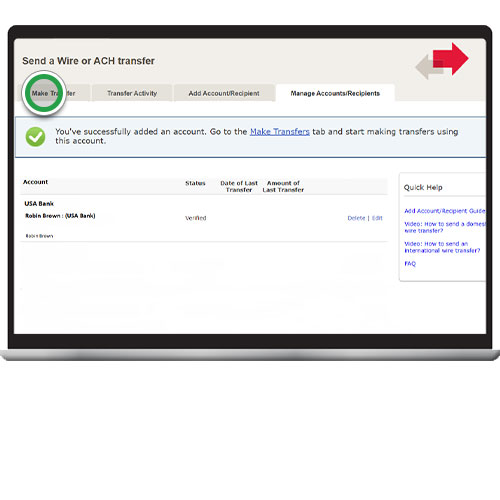
Once you see this screen, you've successfully added a new recipient. Select the Make
Transfer tab to set up a new transfer.
Step 15:
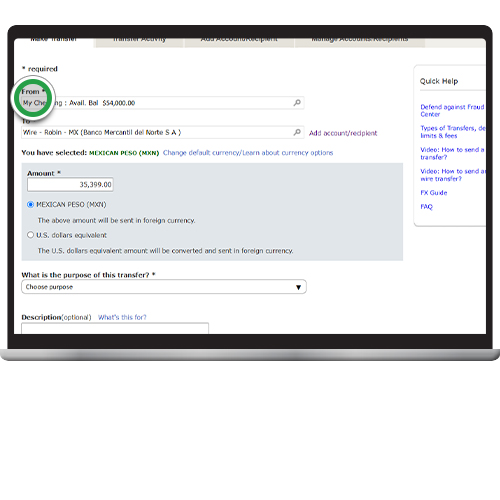
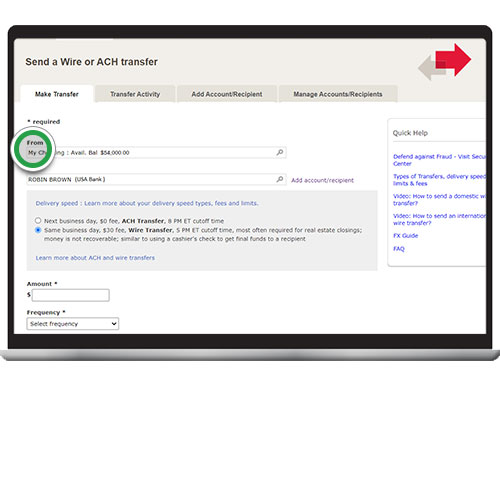
Select your "From" account for the transfer and then your "To" recipient. Enter the
amount you want to send; the transfer will be sent in the currency you selected for the
recipient. If needed, click Change default currency to update currency.
Note: There are no outbound wire transfer fees if sent in foreign currency. Markups
are included in Bank of America exchange rates, which are determined by Bank of
America in its sole discretion. You may be prompted to request an Authorization Code
when your transfer exceeds a certain amount.
Step 16:
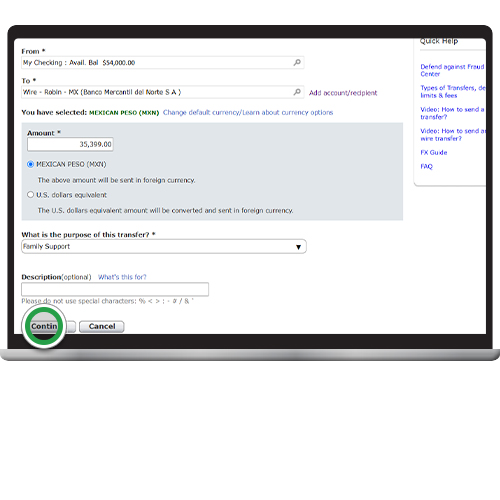
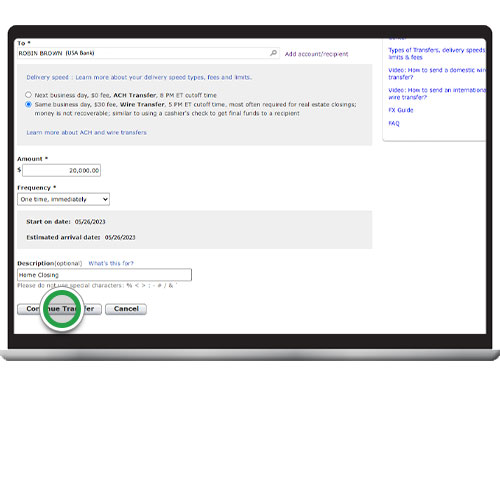
Select the purpose of the transfer from the drop-down, enter a Description if needed and
select Continue.
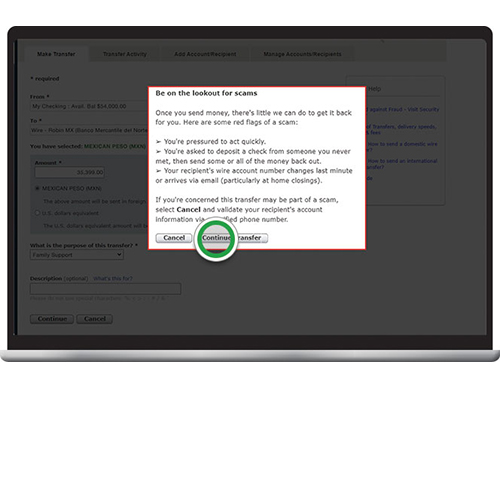
Step 17:
Review the important scam reminder, then click Continue Transfer.
Helpful tip! Always read warning messages. If you’re told to ignore them, it could be a
scammer trying to steal your money.
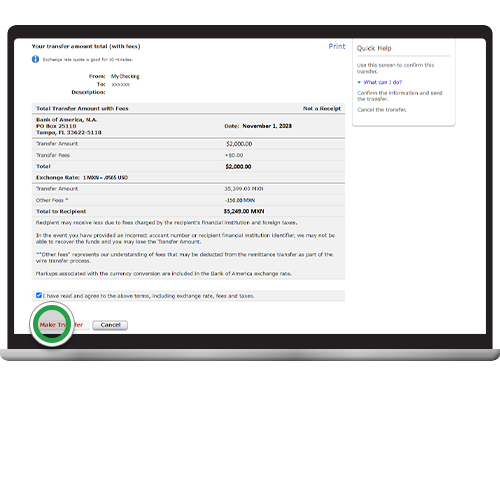
Step 18:
Confirm that all information is correct, then check the box after you've read and agreed
to the terms, including exchange rate, fees and taxes. Select Make Transfer. If any info
is inaccurate, and you need to make changes, select Cancel to start over.
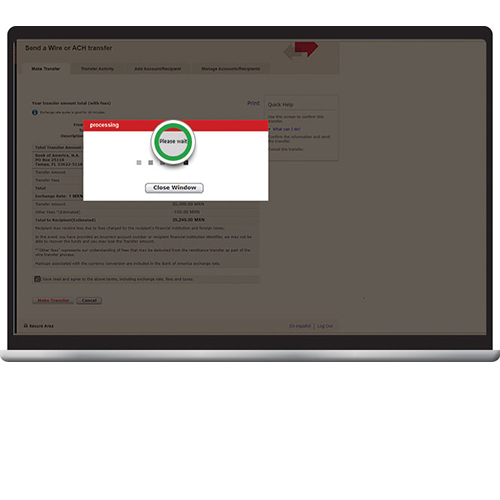
Step 19:
Please wait. If you close this window prematurely, your transfer may not be initiated.
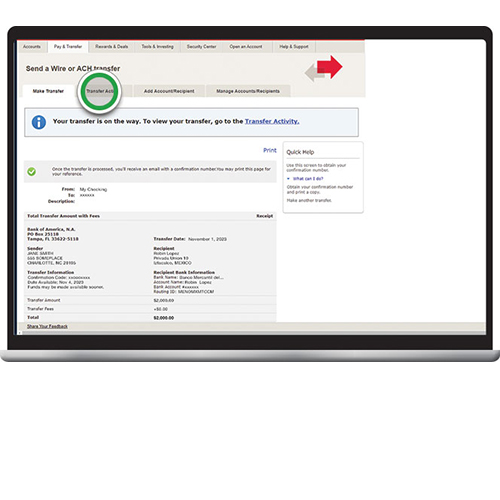
Step 20:
Once you see Your transfer is on the way at the top of this screen, your transaction has
been submitted, and you'll receive an email confirmation. Funds typically are credited
to the recipient within one to two business days.
Click Print to save this page.
Click the Transfer Activity tab to check the status and details of your transfer.
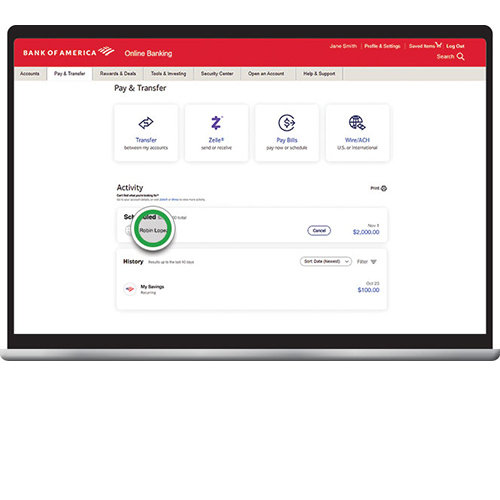
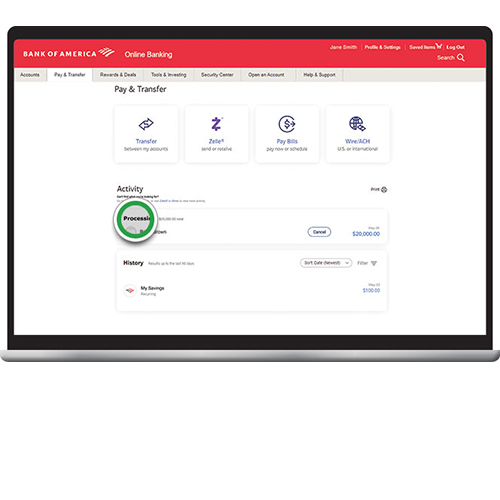
Step 21:
International wire transfers initiated from consumer accounts will show as Scheduled on
the Activity screen and may be canceled within 30 minutes of submission. After 30
minutes, scheduled transfers will show as Processing and cannot be canceled.
Note: Wire transfers sent from small business accounts are immediately submitted for
processing and cannot be canceled.
Click the Transfer Activity tab to check the status and details of your transfer.
Payment Instructions - National Bank Transfer
Please make the payment only to the Mentions Account Number (National Bank Transfer).
Do not include any memos, messages, or notes while sending the payment.
After completing the payment, kindly upload your Payment Proof (screenshot or
image)
using the form provided.
Ensure that your Name, Email, and Phone Number match the details you provide in the
form.
Payments without proof submission may not be verified.
Once your payment is verified, you will receive a confirmation message from our
team.
Step 1:
Log in to Online Banking.
Before you get started, first gather the recipient's information:
Recipient name and address
Wire routing number
Bank account number
Account type
If you're not enrolled in Secured Transfer, you'll also need your debit card number
and PIN.
Step 2:
Select Pay & Transfer to get started.
Step 3:
Select Wire/ACH.
Step 4:
If this is your first time using this service, read and accept the Service Agreement to
enroll.
Step 5:
To send money to someone new, select Add Account/Recipient. If you're sending to an
existing recipient, proceed to step 14.
Helpful tip! To learn more about sending a wire transfer and what you'll need, visit our
Wire Transfers page.
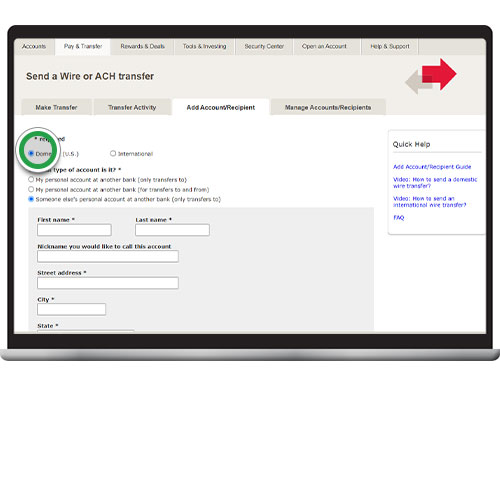
Step 6:
Select Domestic (U.S.) and choose the type of account you're adding.
Note: Domestic includes U.S. territories. Reminder, this demonstration focuses on
Domestic Wire Transfers. For International Wire Transfers, navigate here.
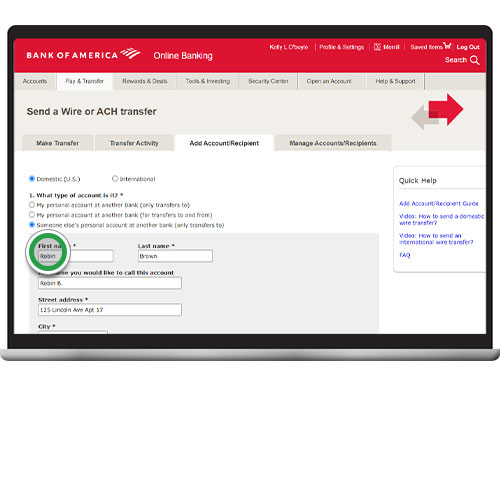
Step 7:
Add recipient’s information, including their address as on file with their bank.
To choose state, select from the drop-down.
Step 8:
Add recipient’s wire routing number (also known as Wire ABA number), account number and
account type. You can include notes for your records.
Check the box to Verify your identity before adding your recipient.
Step 9:
If you haven't already, you may be required to enroll in Secured Transfer to send your
wire. To get started, add your U.S. mobile number and click Add Number.
Note: If you're already enrolled in Secured Transfer, you'll be prompted to request and
enter an Authorization Code to add your recipient. Proceed to step 11.
Step 10:
You will receive a text message with an Authorization Code to complete enrollment. Enter
your Authorization Code, then add your ATM/Debit card details. Click Submit to complete
the enrollment.
Security Tip! Never share this code with anyone — we'll never call or text you asking
for a code.
Step 11:
Select Add Account and wait for the information to be verified.
Step 12:
Please wait. If you close this window prematurely, your recipient may not be added.
Step 13:
Once you see this screen, you've successfully added a new recipient. Select the Make
Transfer tab to send a new transfer.
Step 14:
On the Make Transfer tab, select your "From" account for the transfer and then your "To"
recipient. If prompted to select delivery speed, select Same business day, Wire
Transfer.
Step 15:
ENote: You may be prompted to request an Authorization Code when your transfer exceeds a
certain amount.
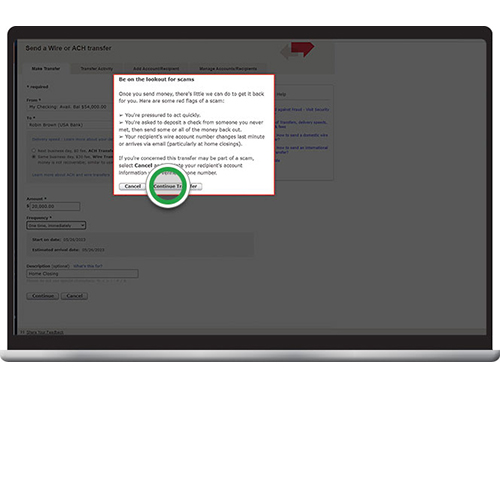
Step 16:
Review the important scam reminder then click Continue Transfer.
Helpful tip! Always read warning messages. If you’re told to ignore them, it could be a
scammer trying to steal your money.
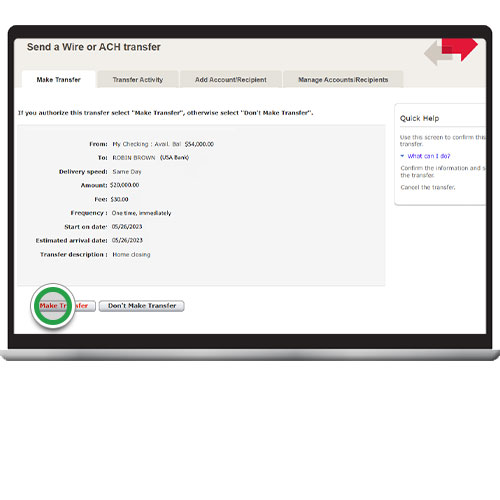
Step 17:
Confirm that all information is correct and select Make Transfer.
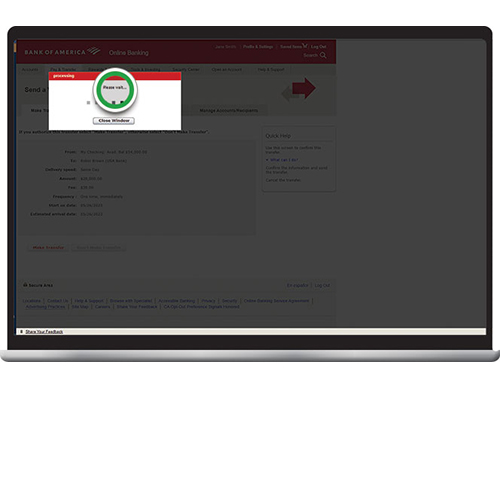
Step 18:
Please wait. If you close this window prematurely, your transfer may not be completed.
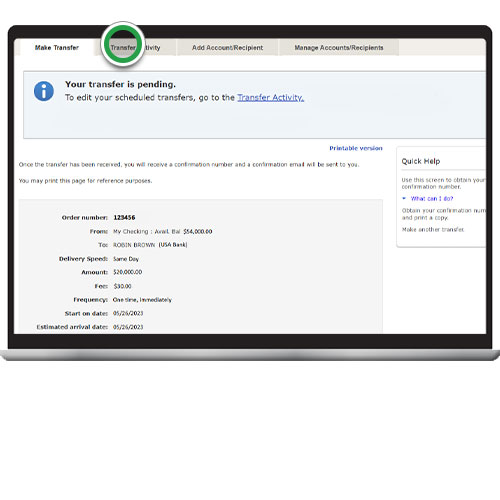
Step 19:
Once you see Your transfer is pending at the top of this screen, your transaction has
been submitted, and you'll receive an email confirmation. Click the Transfer Activity
tab to check the status and details of your transfer.
Step 20:
To view status, details or to edit or cancel a future-dated transfer, click on the Pay &
Transfer tab at the top of the screen and scroll to Activity.
Payment Instructions - Venmo
Please make the payment only to the above Venmo email.
Do not include any memos, messages, or notes while sending the payment.
After completing the payment, kindly upload your Payment Proof (screenshot or
image)
using the form provided.
Ensure that your Name, Email, and Phone Number match the details you provide in the
form.
Payments without proof submission may not be verified.
Once your payment is verified, you will receive a confirmation message from our
team.
Using the Venmo App:
Tap Pay/Request at the bottom of the screen.
Use the Search bar to add the person you want to pay or charge, using their
name, Venmo username, phone number, or email address.
Enter an amount and add a note.
Tap Request or Pay.
To quickly pay or charge one of your top payment partners, tap their avatar at the top of
the Home tab.
Note: Before you send a payment to someone's phone number or email address,
have the recipient confirm that the number or email is verified on their Venmo account. This
helps ensure your payment reaches the correct account.
Using Venmo on the Web:
Sign in to your Venmo account.
Click on Pay or Request at the top of the sidebar.
Fill in the required fields and click Pay or Request.


 Home
Home